Audiences
Learn how to use Audiences to power your lifecycle and transactional messaging.
An Audience is a user segment that you can use to target users for workflows, guides, and broadcasts. Knock supports two types of audiences: static and dynamic. Dynamic audiences are maintained in real-time based on a set of defined conditions. Static audiences are mained via direct updates, either via a reverse ETL source such as Hightouch or Census, a CSV upload, the API, or manually in the Knock dashboard.
Use audiences to:
- Trigger workflows for lifecycle messaging (such as new user signups) and transactional messaging (such as payment method updates).
- Orchestrate branch and conditional logic within your workflows using audience membership (e.g. if a user is in a
paid usersaudience, opt them out of the workflow). - Target users for an in-app guide.
- Send a one-time message to a specific audience with a broadcast.
Creating an audience
#To create an audience, navigate to the Audiences page under the Recipients section on the Knock dashboard’s sidebar, then click “Create audience” in the top right corner. Determine whether the audience will be dynamic or static. Audience types cannot be changed after creation.
Dynamic audiences
#Dynamic audiences are built by creating a set of query rules on top of the user data in Knock, expressed as conditions. You can build dynamic audiences using the properties available on your user objects. For a full reference of supported condition types and operators, see the conditions docs.
Knock will automatically update the dynamic audience in real-time as the user data in Knock changes, moving users in and out of the audience as their properties change. These changes are known as "membership events" and are used to trigger workflows.
When building a dynamic audience, you will see a real-time preview of the audience members that match the query rules you’ve created on the right side of the screen. Remember, these are users in the current environment that match the query rules you’ve created.
Changes to dynamic audience are versioned and promoted to environments. These changes must be made in your environment's main branch.
Static audiences
#Static audiences are populated by adding users directly. You can populate a static audience in a variety of ways:
- Workflows. You can use the update audience function in a workflow to add or remove users from a static audience.
- Reverse ETL support. Audiences can easily be synced from Hightouch Models and Census Segments by configuring Knock as a sync destination. Click through to the integration-specific documentation for more information.
- Audiences API. The Knock API can be used to sync audiences from any data warehouse or reverse ETL system. Create the audience in the Knock dashboard, then use the add and remove API operations to power your sync. The API is designed for batch processing and accepts payloads of up to 1,000 members at a time. For more information see the audiences API docs.
- CSV upload. You can upload a CSV of users to an audience. After uploading your CSV, you can map the CSV fields to the corresponding user fields in Knock. Knock will upsert the users as they are added to the audience and skip any users with malformed or missing IDs. The maximum size of a CSV upload is capped at 10MB.
- Manually. You can manually add existing users to an audience in the dashboard.
Audiences and workflows
#Audiences integrate with workflows in two key ways. You can configure a workflow to trigger automatically whenever a user enters an audience, enabling event-driven lifecycle messaging without additional API calls. You can also use audience membership as a condition in branch and step conditions to gate logic based on which audiences a user belongs to at the time of execution.
Audiences and tenants
#When adding users to static audience you can optionally include a tenant ID to power per-user, per-tenant notifications. When uploading an audience via CSV, the column that contains your tenant IDs should be mapped to the Knock field tenant_id.
A user can exist in an audience with multiple distinct tenants:
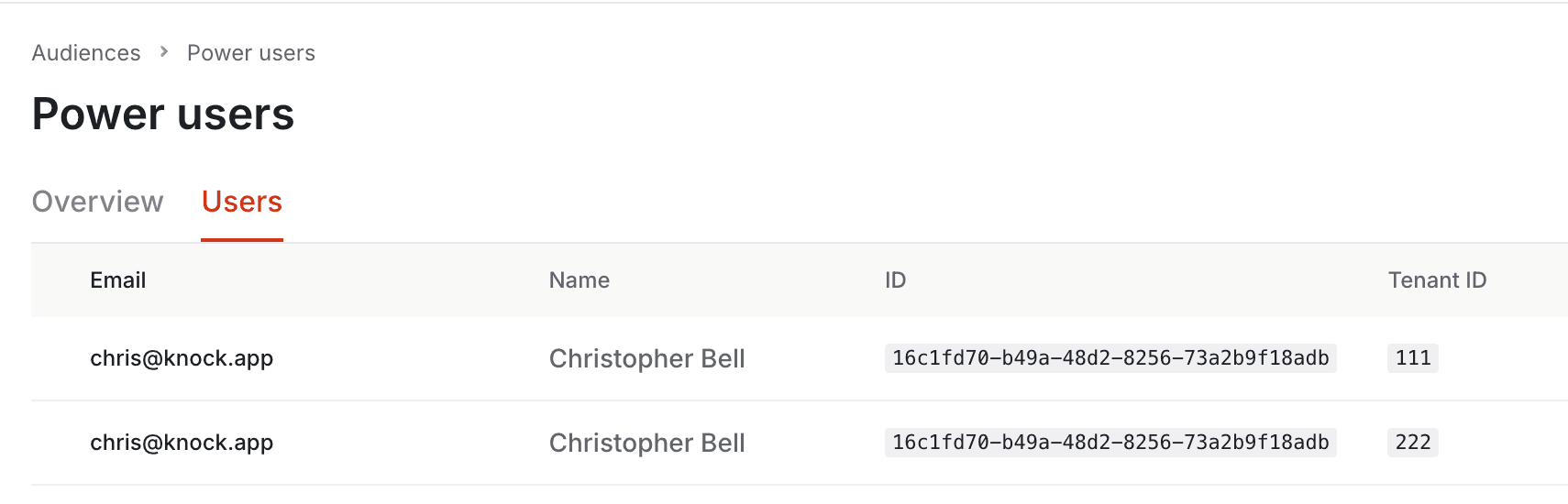
When a tenant is provided as part of a user's audience membership record, it will be passed as the tenant context on any broadcast or workflow runs that are triggered for that audience:
- For broadcasts, tenants that are mapped in your audience are included when the broadcast is sent. If a user is included in the audience with multiple distinct tenants, the broadcast will be sent once per tenant.
- For workflows that are triggered from an audience entry event, the tenant ID provided for the member will be passed along to the workflow trigger. If the same user is added with multiple distinct tenants, the workflow will trigger each time by default. To configure this behavior use trigger frequency controls.
These runs will respect any tenant-specific preferences, branding, and translations that have been configured for the tenant and recipient.
Conditional evaluation
#Tenancy is also taken into account when audience membership conditions are evaluated. For a recipient to be considered a member of an audience when a condition is evaluated, the tenant ID provided as context on the current broadcast or workflow run must match the user’s audience membership record. If no tenant ID was provided with the trigger, the user must have been added to the audience with no tenant ID.
For more information about how audience membership is evaluated for guides eligibility, see the guides documentation.